 PearPass
How to Turn On Autofill
Autofill suggests saved credentials when signing in to apps and websites. PearPass currently supports autofill on mobile devices. On desktop, use the browser extension to fill in credentials in your browser.
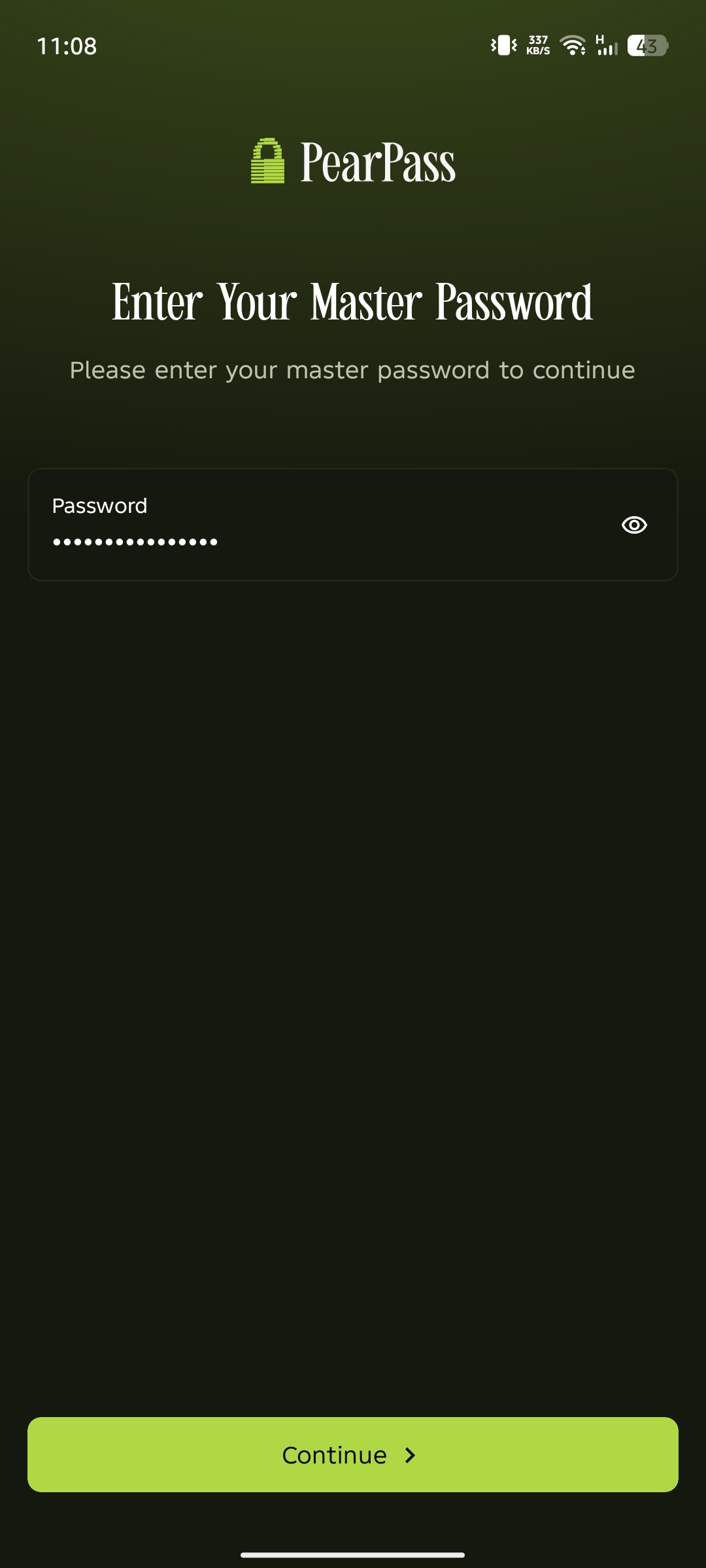
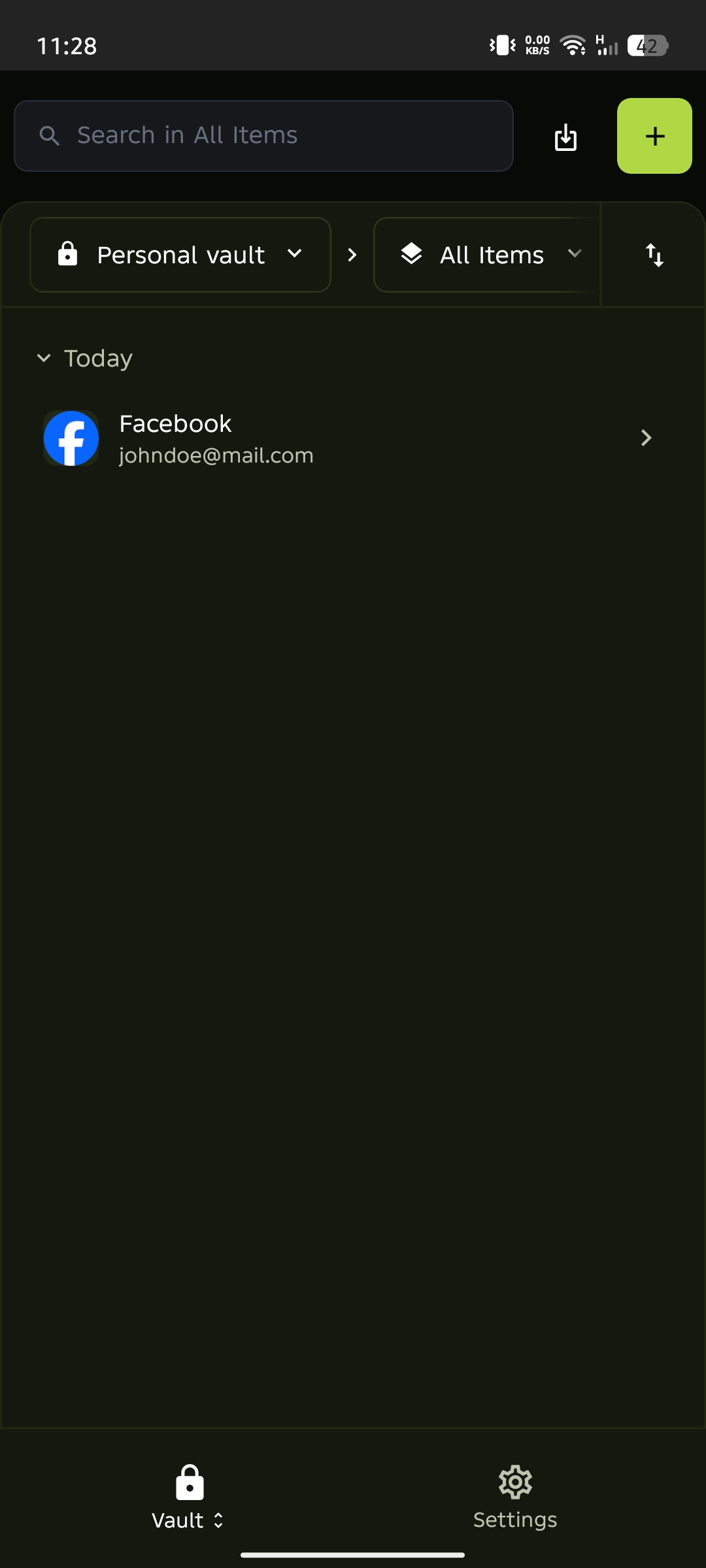
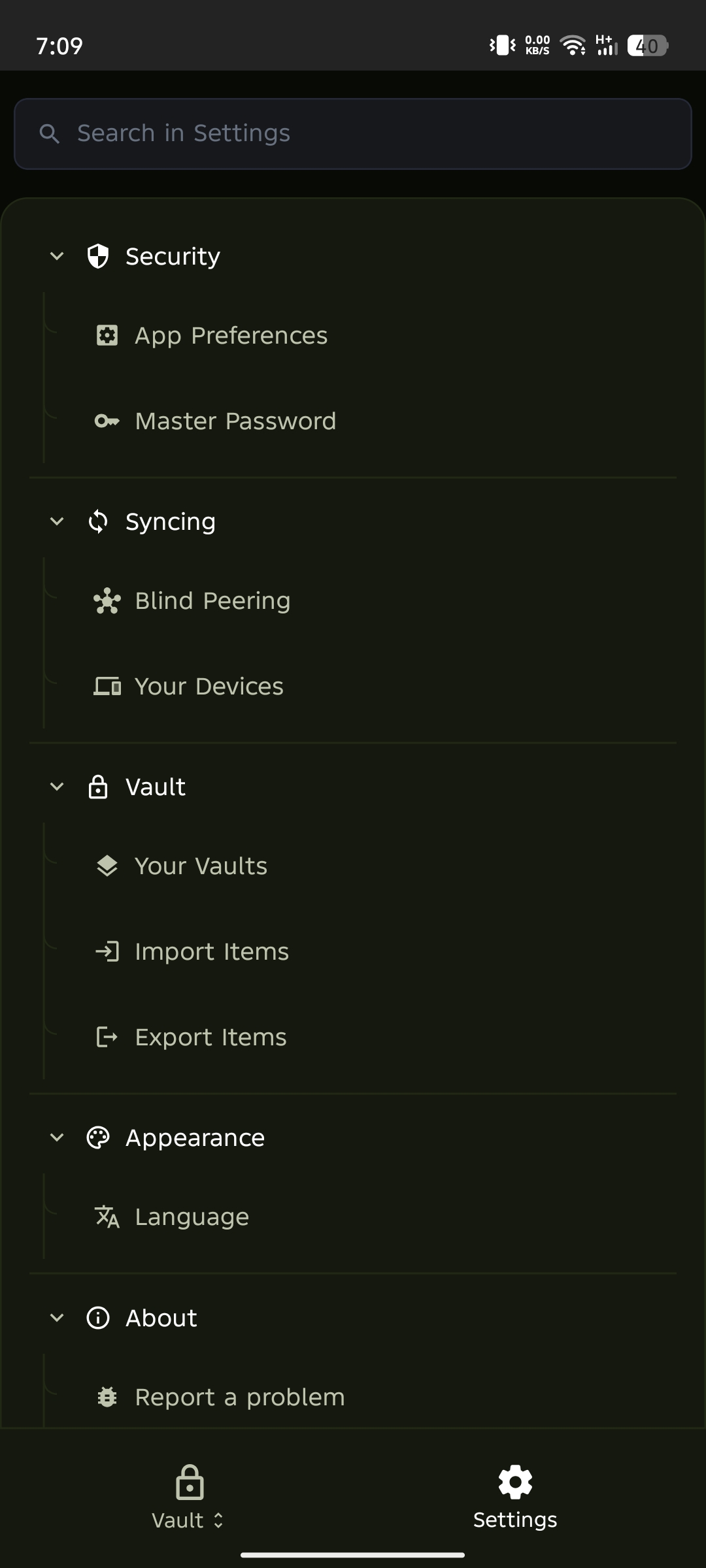
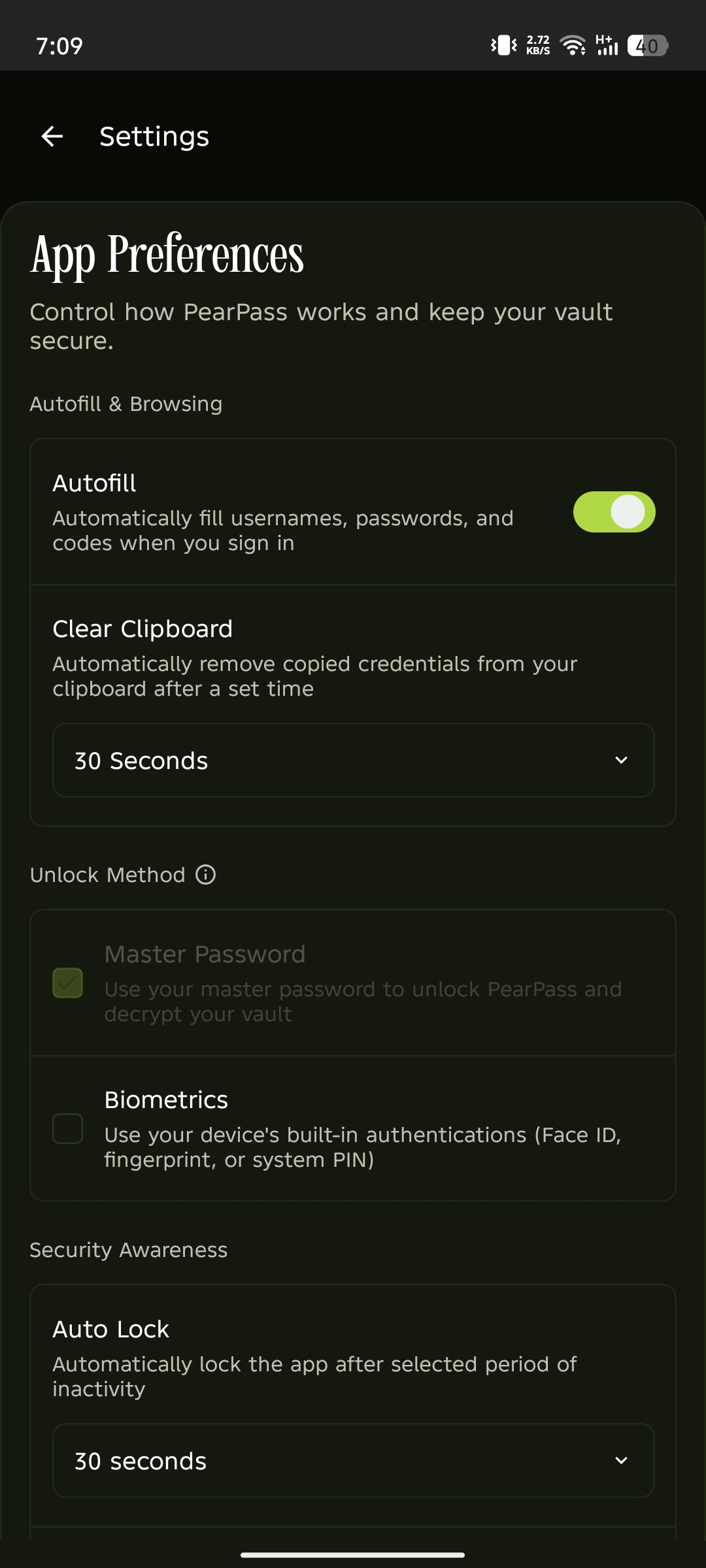
Turn on Autofill
Tap Turn on Autofill, follow your device's prompts to enable autofill in your system settings, then select PearPass.
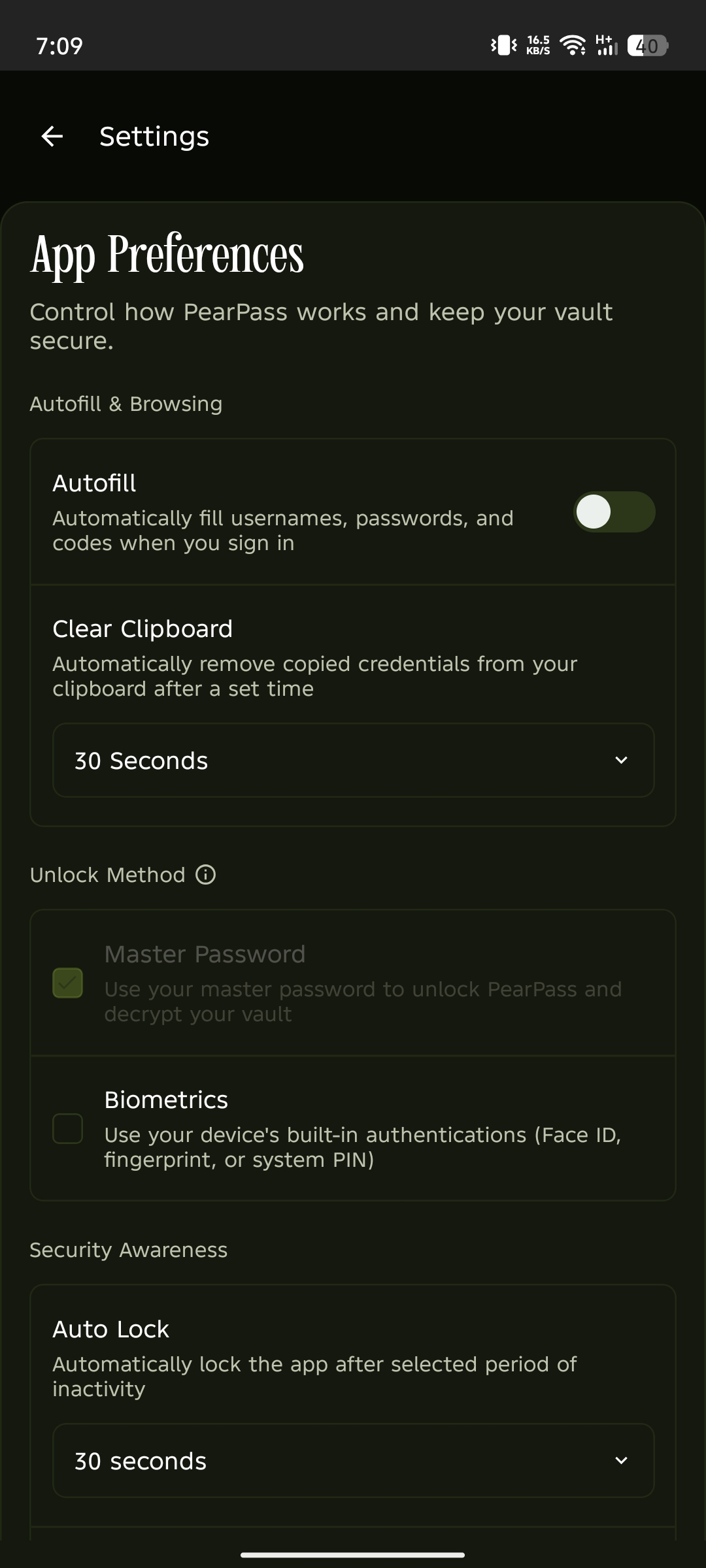
Autofill is enabled
Autofill is now active. PearPass will suggest your saved credentials when signing in to apps and websites.