
 PearPass
How to Configure Auto Log-out
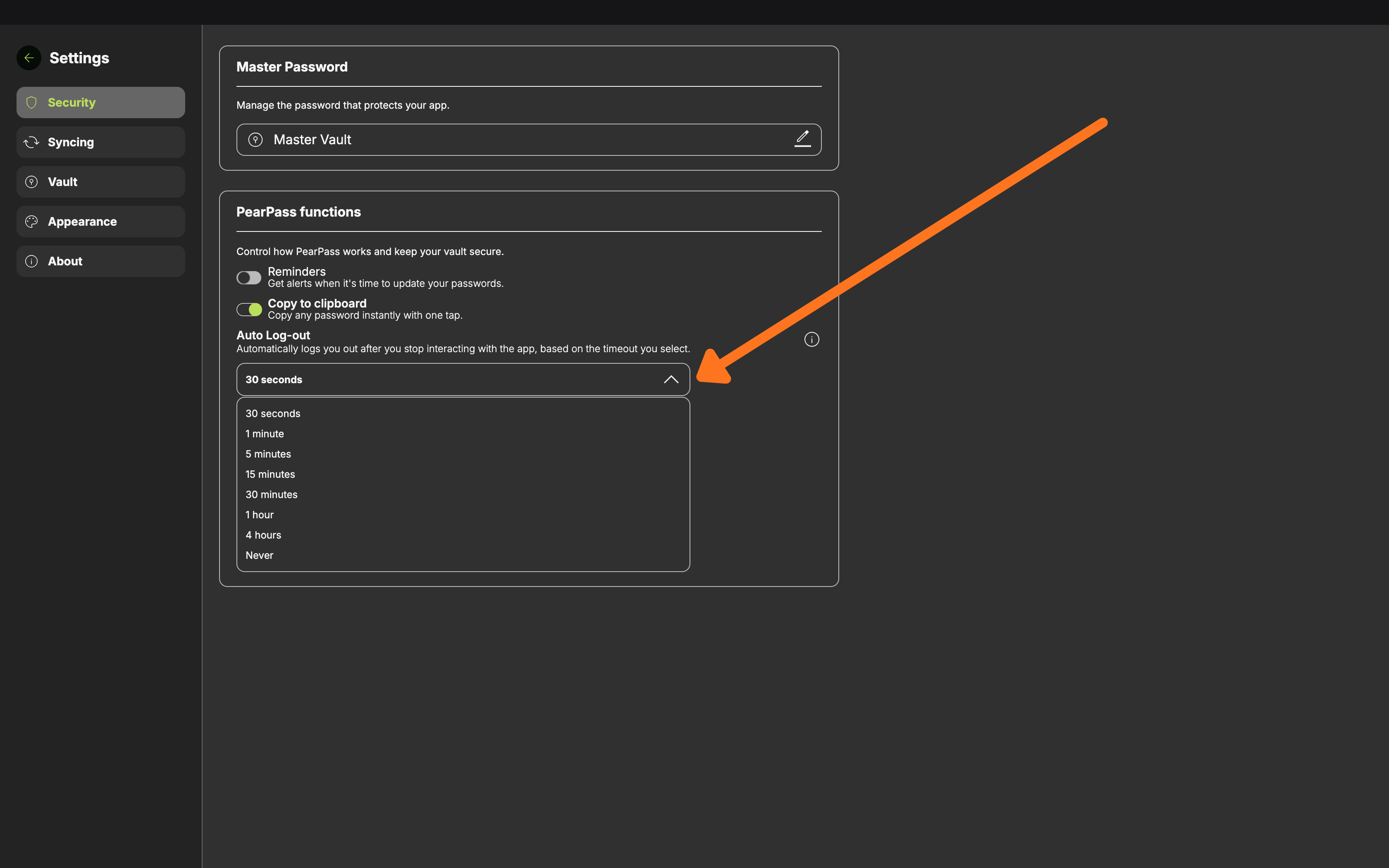
By default, PearPass locks after 30 seconds of inactivity and requires your master password to unlock. You can change this timeout to control how often PearPass asks you to authenticate.
A longer timeout increases the window in which someone with physical access to your device could access your vault without your master password.
Activity in the desktop app keeps the browser extension unlocked, but activity in the browser extension does not keep the desktop app unlocked. Mobile auto-lock is managed separately.
Available options
| Option | Locks after |
|---|---|
| 30 seconds (default) | 30 seconds of inactivity |
| 1 minute | 1 minute of inactivity |
| 5 minutes | 5 minutes of inactivity |
| 15 minutes | 15 minutes of inactivity |
| 30 minutes | 30 minutes of inactivity |
| 1 hour | 1 hour of inactivity |
| 4 hours | 4 hours of inactivity |
| Never | PearPass stays unlocked until you manually lock it or close the app |
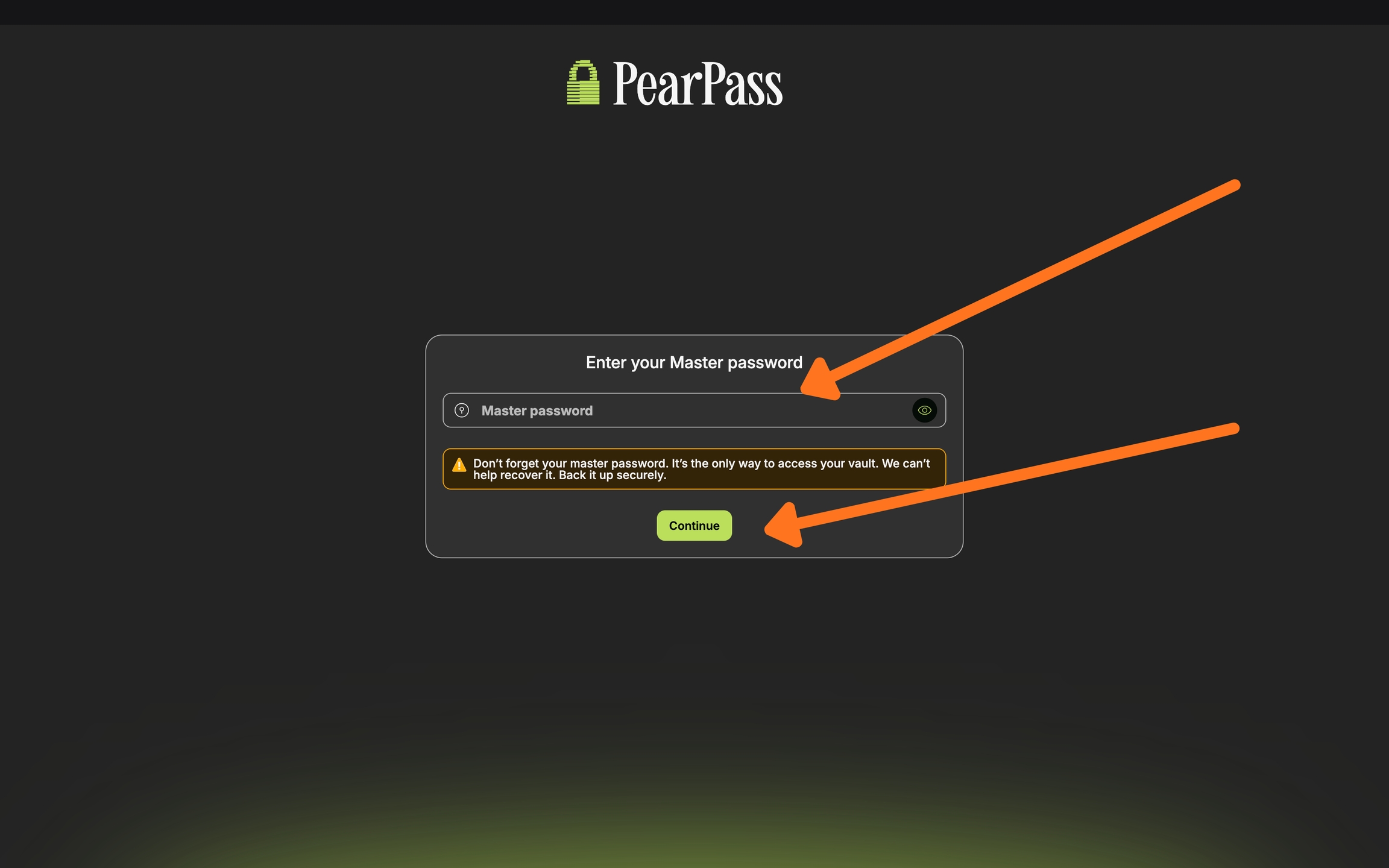
Open PearPass and sign in
Open the PearPass app and sign in with your master password.
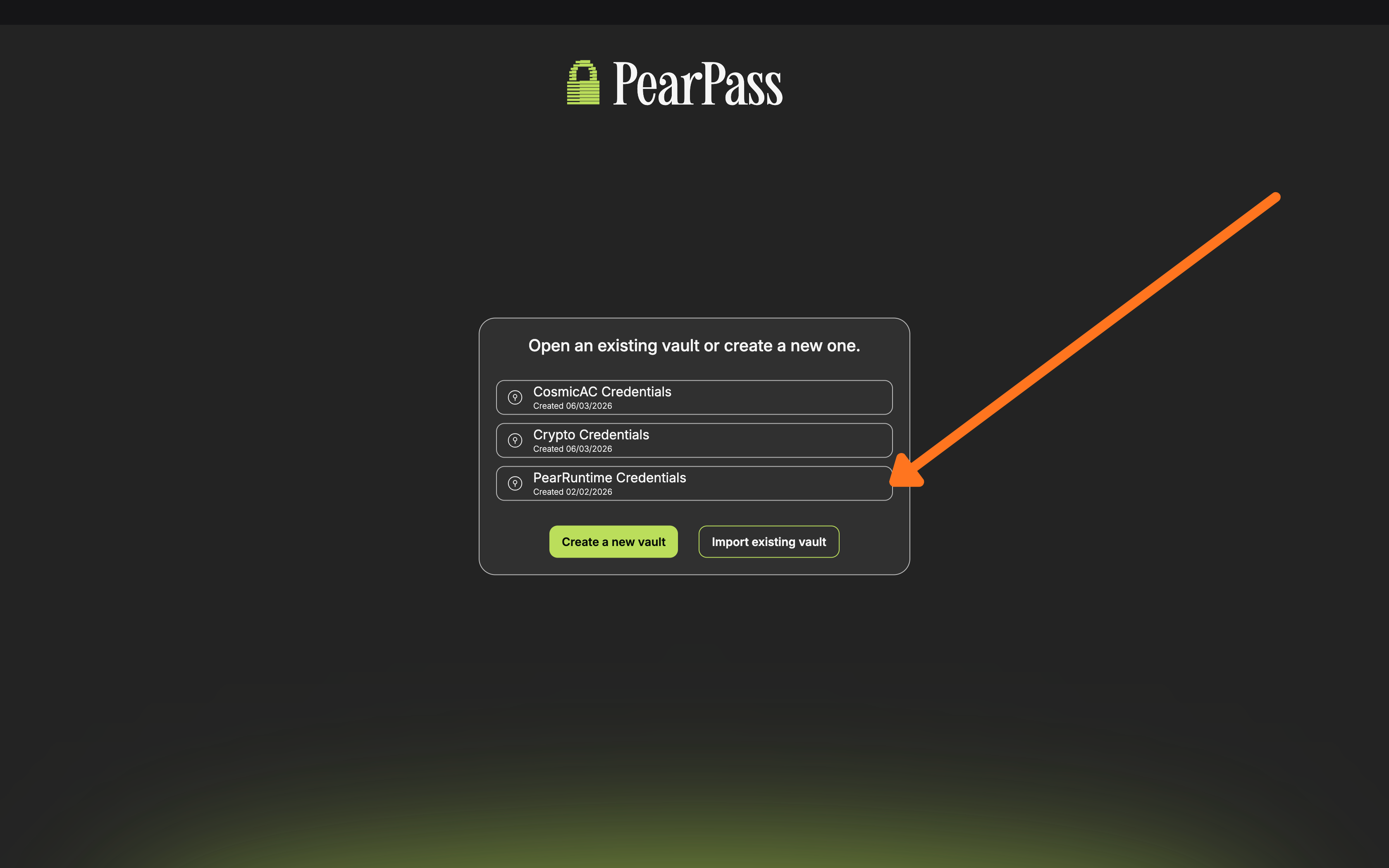
Select a vault
Select a vault to proceed.
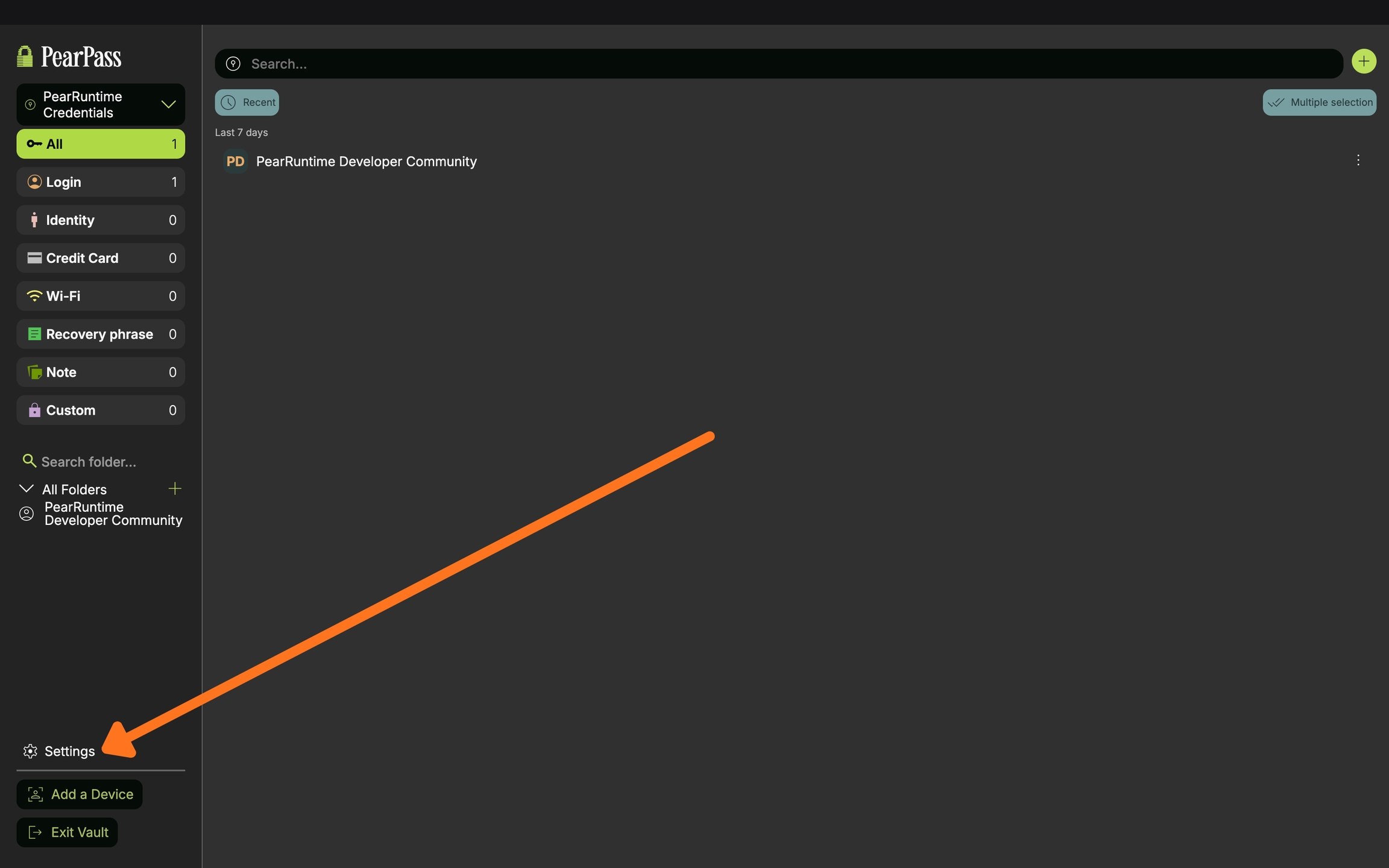
Open Settings
Click Settings.
Set the Auto Log-out timeout
On the side menu bar, click Security. In the Security screen, navigate to the PearPass functions section. Click the Auto Log-out dropdown and select the timeout that works for you.
Sign in
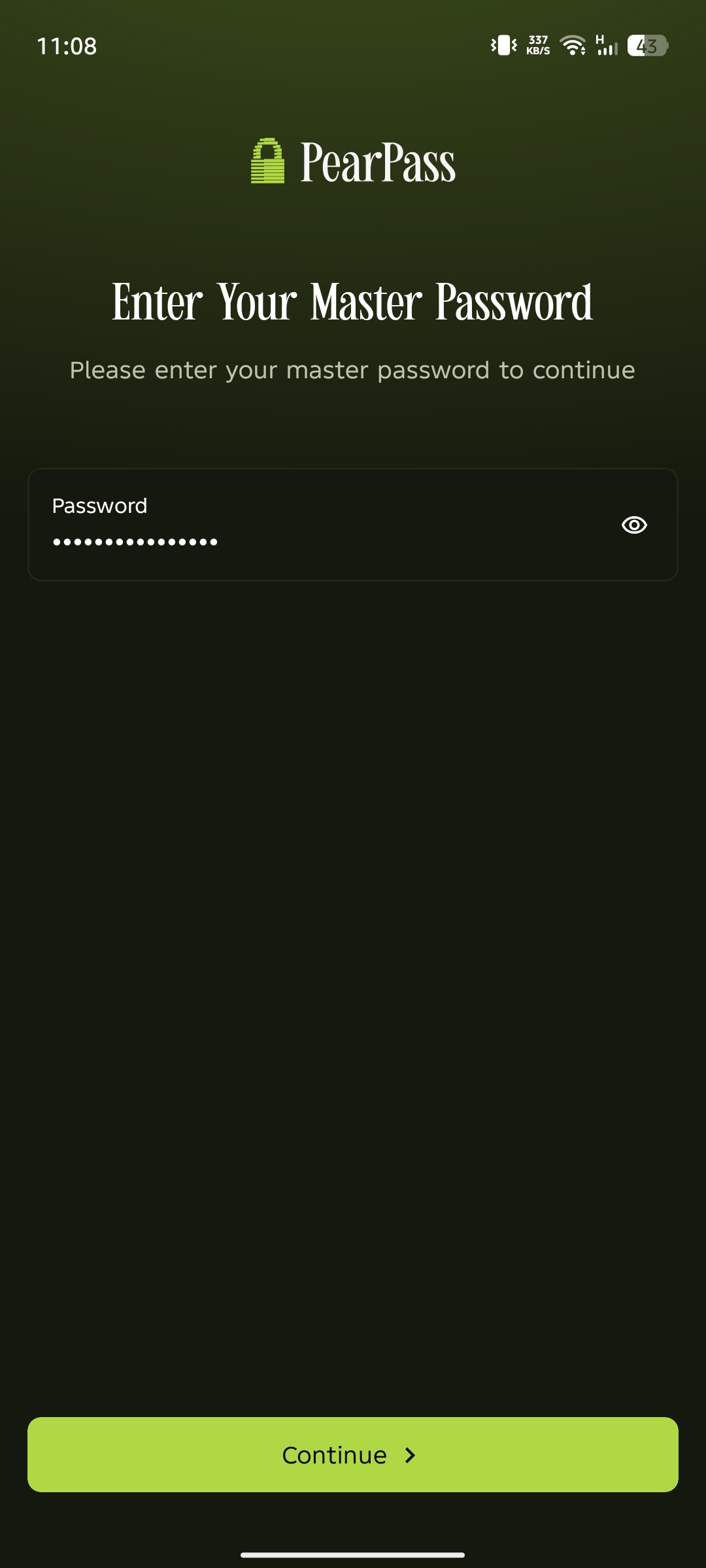
Open PearPass on your mobile device and sign in with your master password.
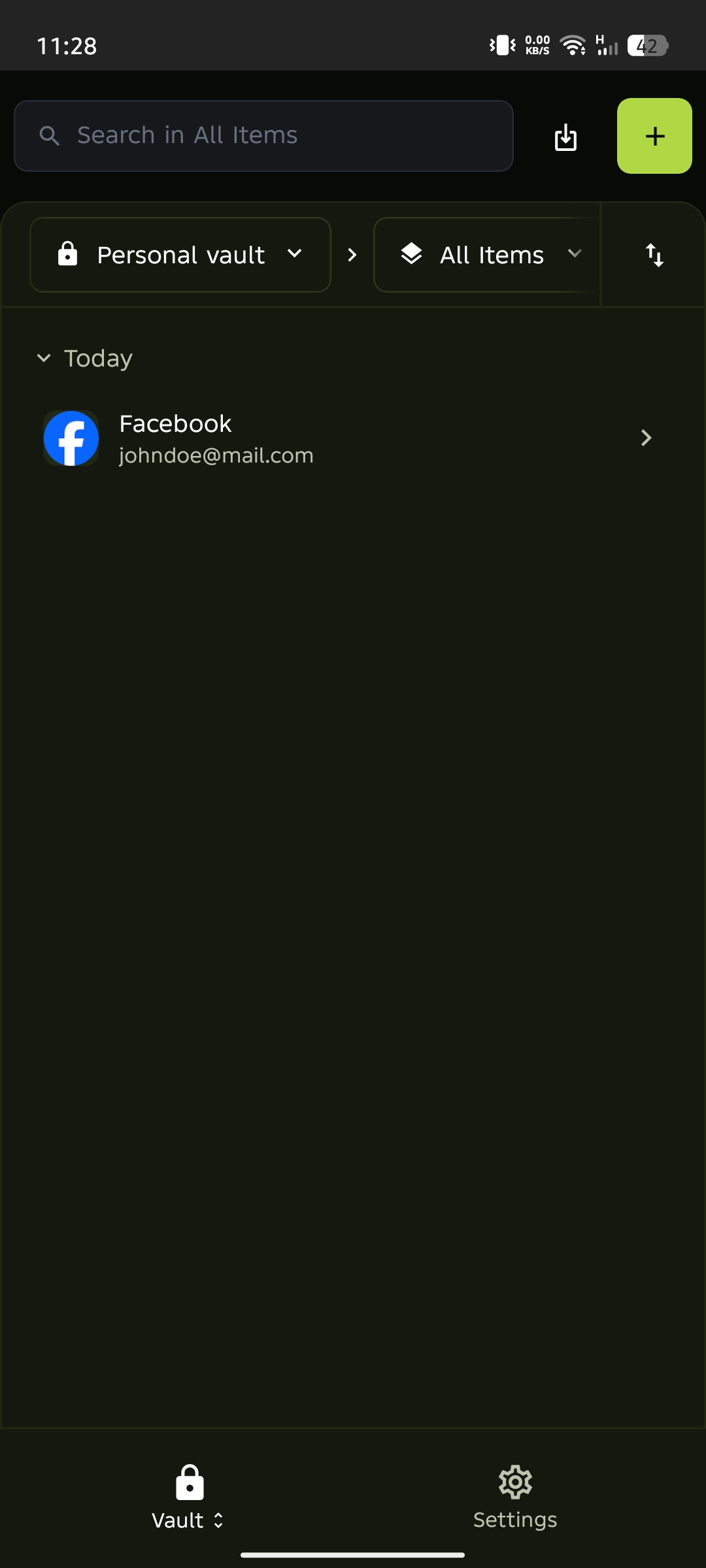
Open Settings
From the vault screen, tap the settings icon in the bottom menu.
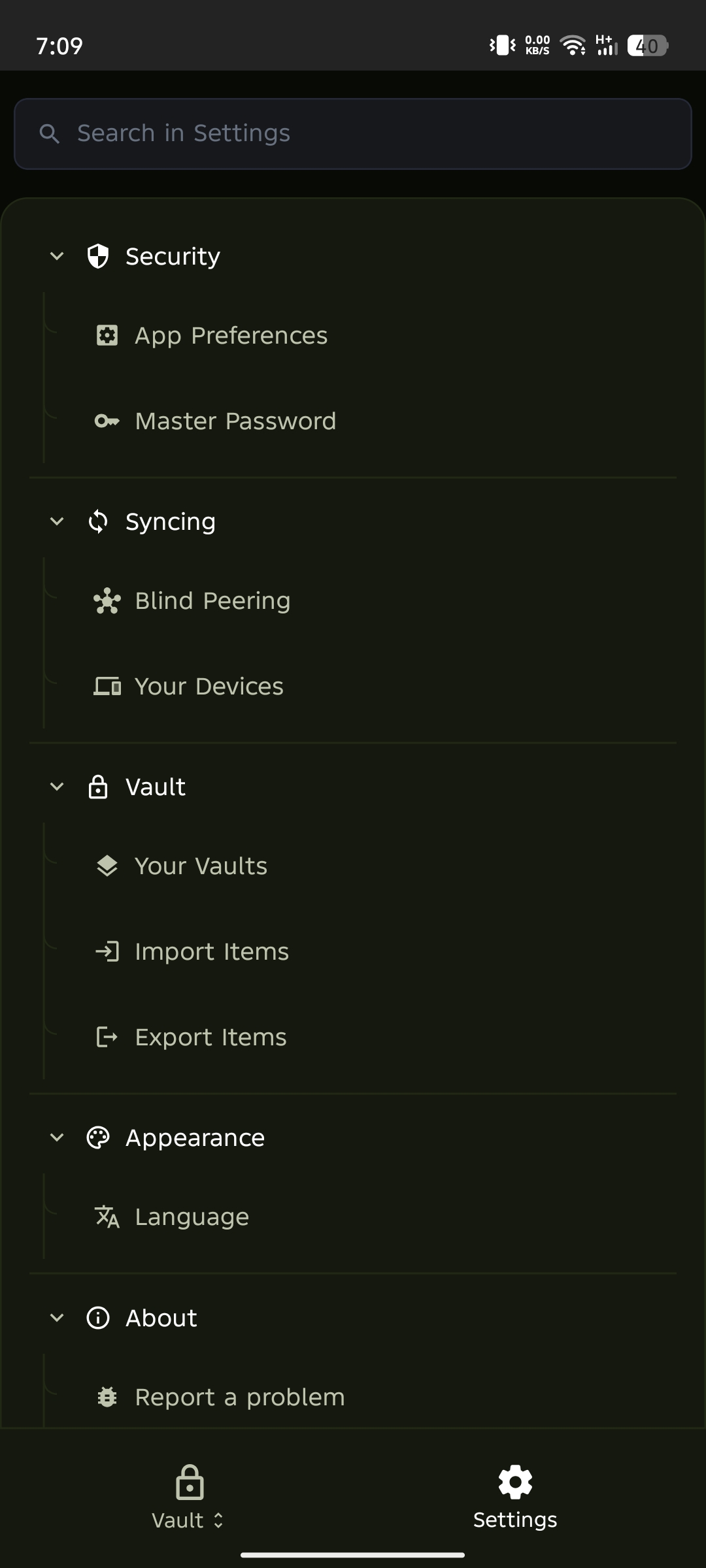
Select App Preference
Tap App Preference from the settings menu.
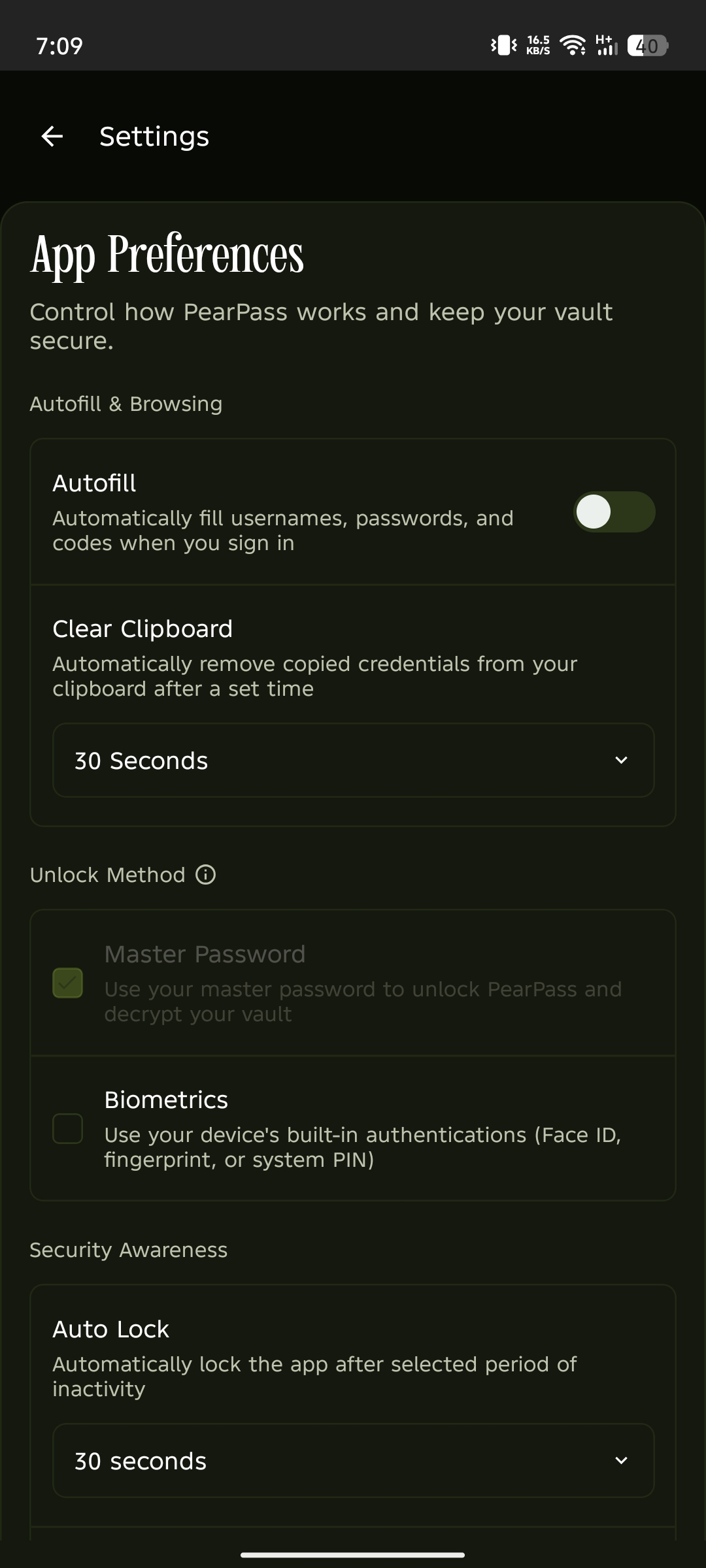
Set the Auto Log-out timeout
Tap the Auto Log-out dropdown and select the timeout that works for you.
What's next
- PearPass Functions — Full reference for all PearPass functions settings.